
To Set Up a Retainer
- Go to Projects > Retainers in the left menu.
- Select the Client that the Retainer belongs to from the Client drop-down menu.
- Enter in a Name for the Retainer.
- Enter in the Start Date of the Retainer (we recommend starting a Retainer on the first of the month, if possible, for easier reporting).
- Enter the Duration (max 24 months) of the Retainer.
- Enter in the amount per month for the Retainer and select if it is fees or hours based.
- If your Retainer is fee based, you can also choose ‘Include Project Costs’ to include actual cost amounts against your monthly retainer amount.
- Select the Projects to be included in the Retainer (to have all projects for the selected client included in the retainer, select All Projects).
- Select the Retainer Manager. This person can choose to receive notifications when the Retainer has reached selected percentages of the monthly amount. If you would like other users to also receive notifications for this Retainer, select their names from the Retainer Notifications drop-down menu.
- Enter in any Notes specific to this Retainer (optional).
- Click Save New.
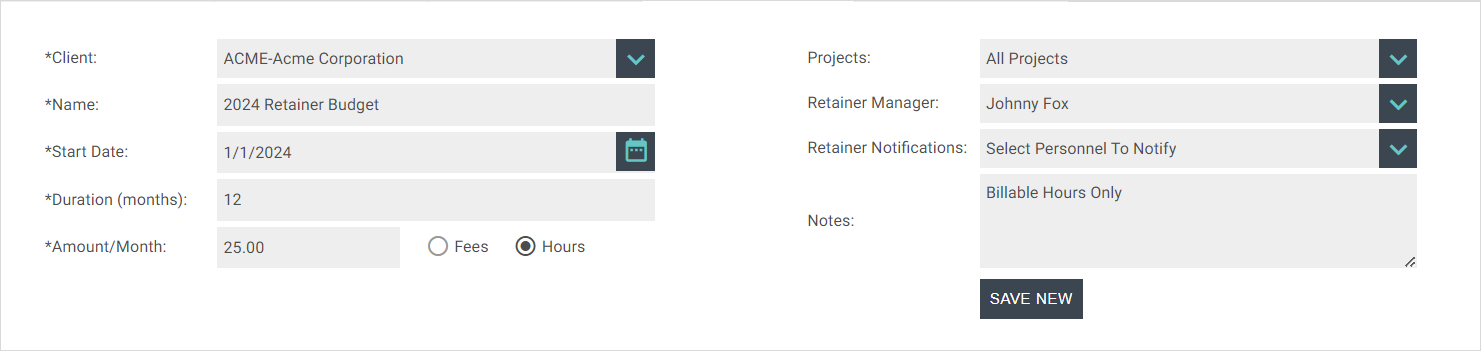
Adding a New Retainer
Retainer data can be tracked using the CEO Desktop > Retainers page or the Retainer Report.
Note: Once a Retainer has been set up for a Client, you can add a new Project to the Retainer when adding the Project on the Projects > Manage page.
pets FOX TIP: Have a Retainer that has a higher budget for a month or two? You can adjust/customize individual monthly amounts for a Retainer by clicking on the Months icon beside the retainer.

Archiving a Retainer
Once a Retainer has reached the end of its duration, it is no longer considered active. Inactive Retainers can be archived as needed.
Retainer Notifications
To set Retainer notifications, navigate to Settings & Preferences > Account Preferences > Alerts. In the Retainer Alert drop-down menu, choose as many percentages as you want. The Retainer Manager will receive a notification when the actual monthly hours/fees have reached a selected Retainer percentage, as long as they also have the ‘A retainer that I’m manager of has reached a specified %’ notifications activated under My Preferences > Notifications > Project Notifications.